Register for course
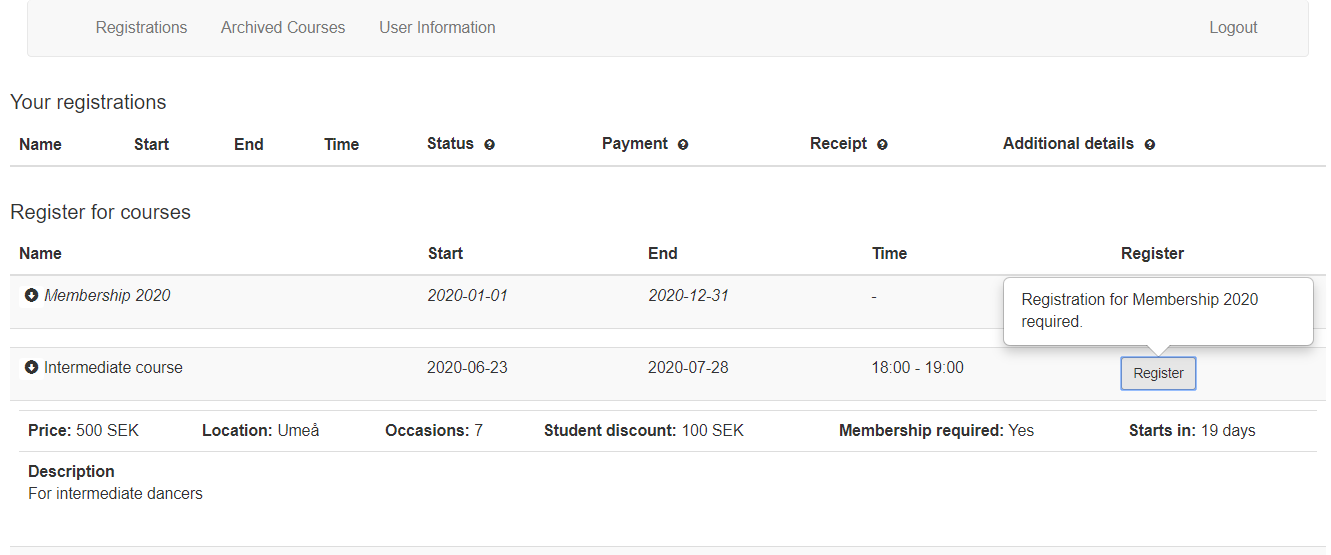
To register for a course, click on the Register button. If the course requires a membership fee, a popup will be displayed telling you to register for the membership before you are able to register for the course.
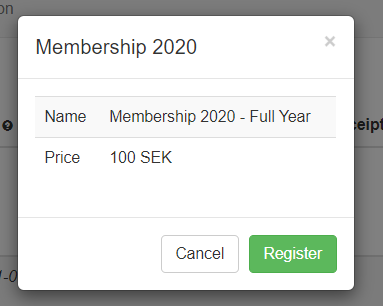
To register for a membership, just click the Register button for the membership in question. A popup will inform you of the price, there are no other options to choose from here. When you click register you will be automatically acceptedto the membership, and it will appear on your registrations page. You can now proceed to register for other courses that require the membership, it does not need to be paid before you can register.
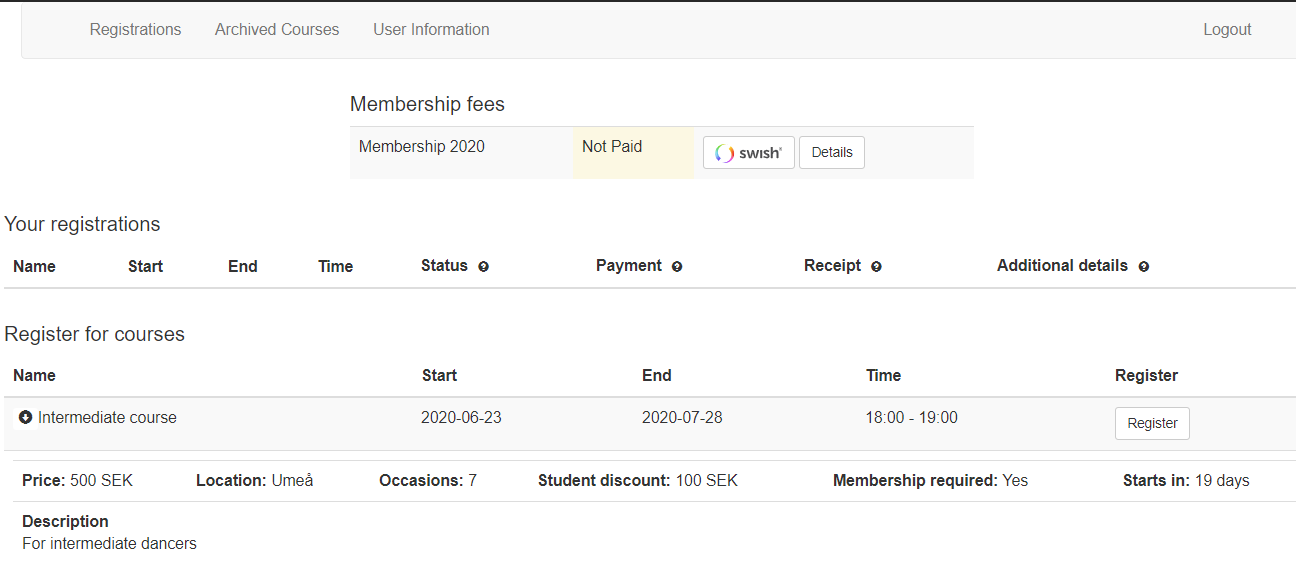
Now it is possible to click on the Register button for the course:
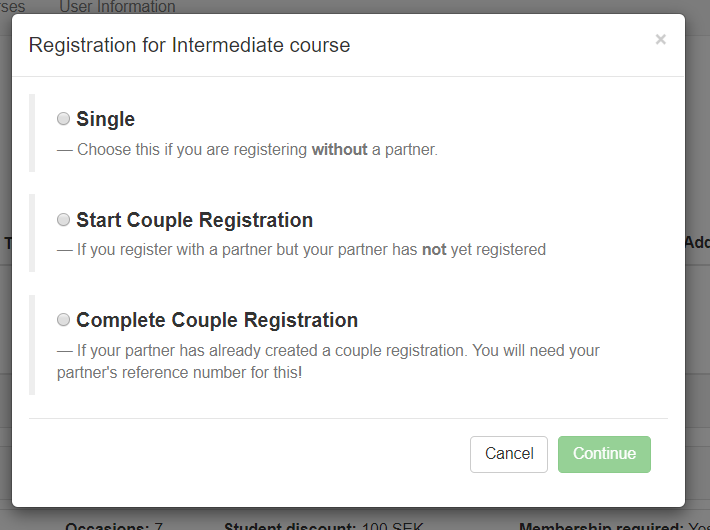
Single registrations and Start Couple Registrations
If you are registering on your own, click the Single button, if you are registering in a couple and you are the first person to register, click the Start Couple Registration button, so that the partner you register with can click the Complete Couple Registration button.
Note! A registration is not considered completed until both persons in a partner registration has registered.
If you have registered as a single leader or follower, and been accepted to the course, it is not possible to change your registration to a couple registration later.
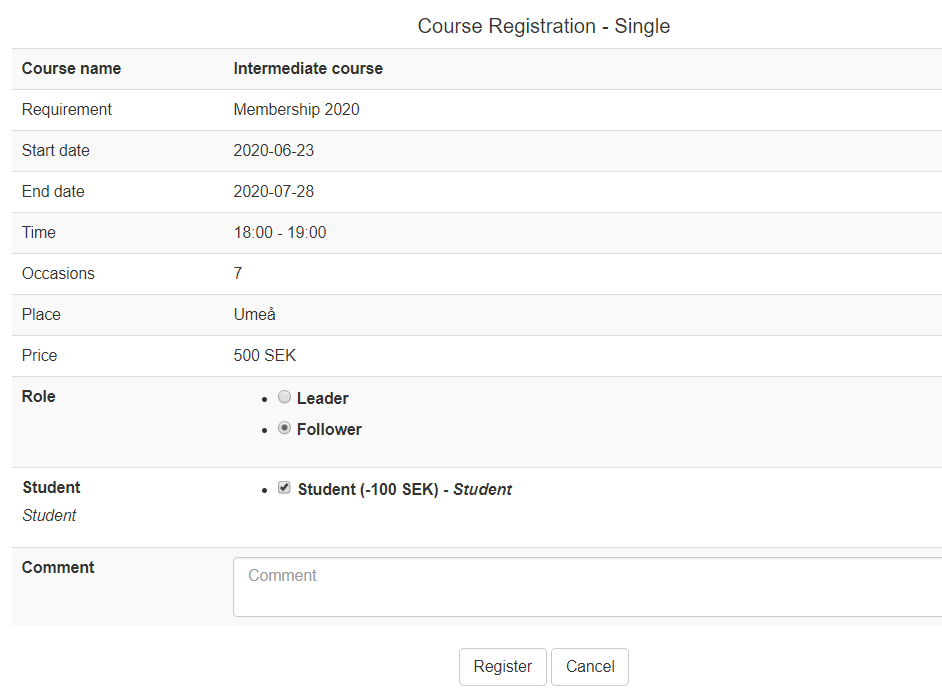
Fill in if you register as a leader or follower, and if you are a student. Any other comments can be entered in the comment field. If you have any discount codes or anything that will alter the price, enter it here. As the registration response is automatic, you will first get an email with the original payment details. The admin will then have to go in and look at your comment and change the price, and send out a new confirmation to you.
The Single registration and Start couple registration pages look exactly the same.
If you started a couple registration, your registration will appear on your Registrations page with the status Pending, meaning the registration will be processed after your partner has completed the registration:
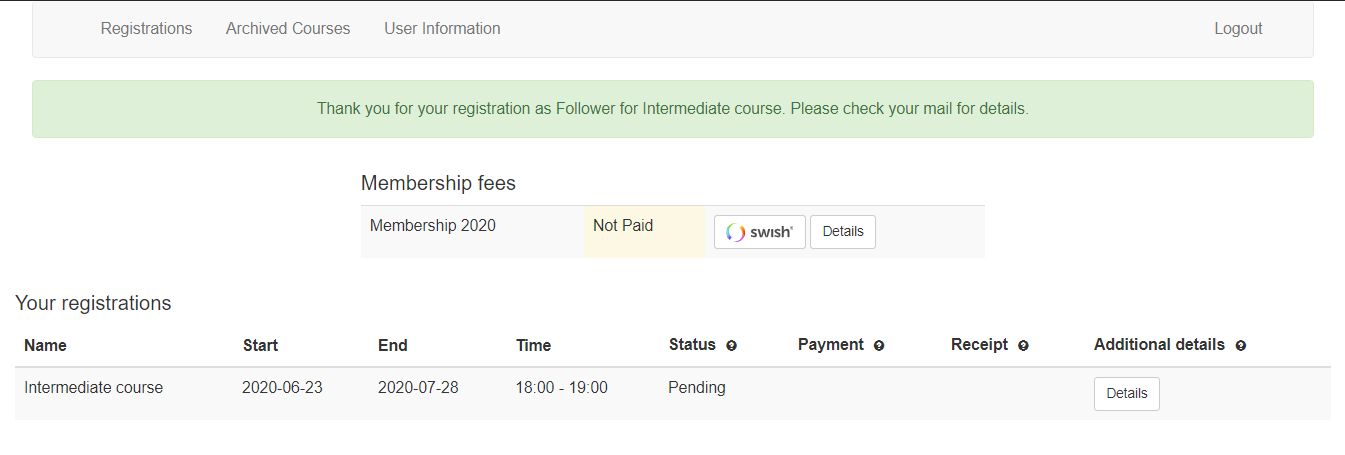
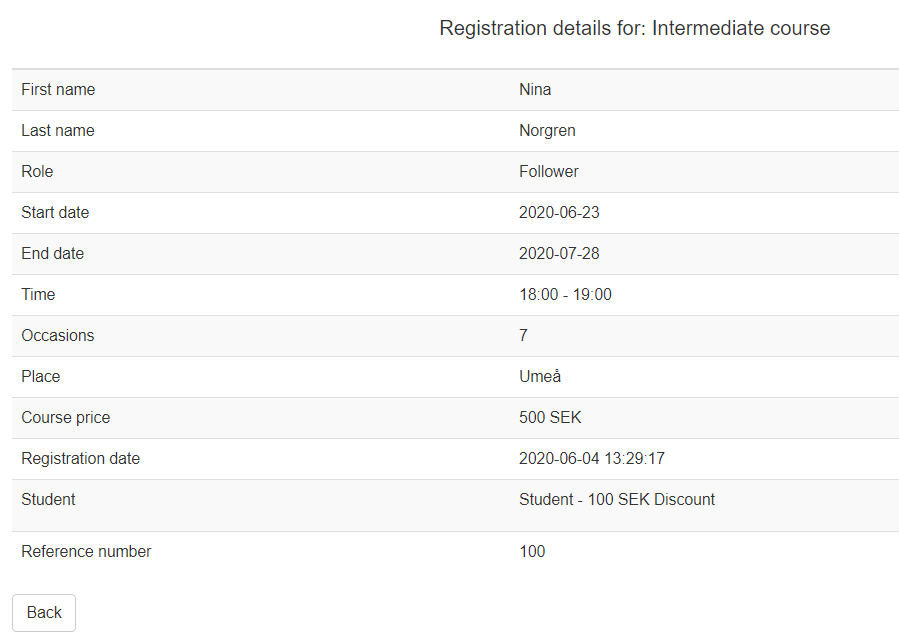
Give the reference number of your registration to the partner you are registering with, it can be found in the Details section:
Complete Couple Registrations
To register with someone that has either started a couple registration, or someone who has registered as single, but been put on queue, choose the Complete Couple Registrations button. You will then fill in your partners first name and his/her reference number. The one completing the couple registration cannot choose role, as it will be the opposite of the first one starting the registration.
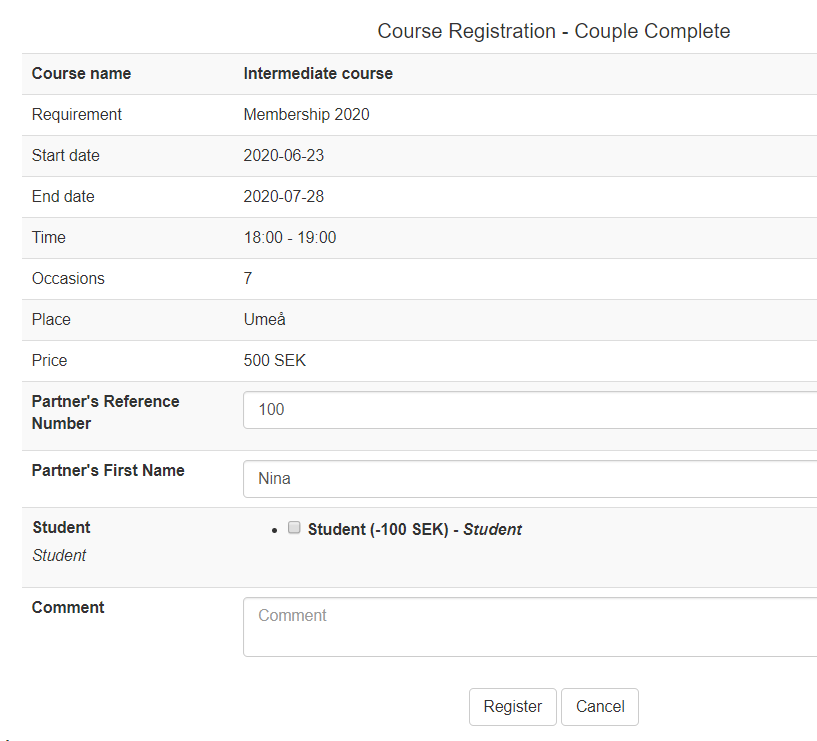
If the name and reference number doesn’t match what’s in the system already, the registration will not be allowed. When both partners have sent in their registration, the system will either accept both to the course, or put them in queue, depending on how many couples are allowed in the course.
Payments
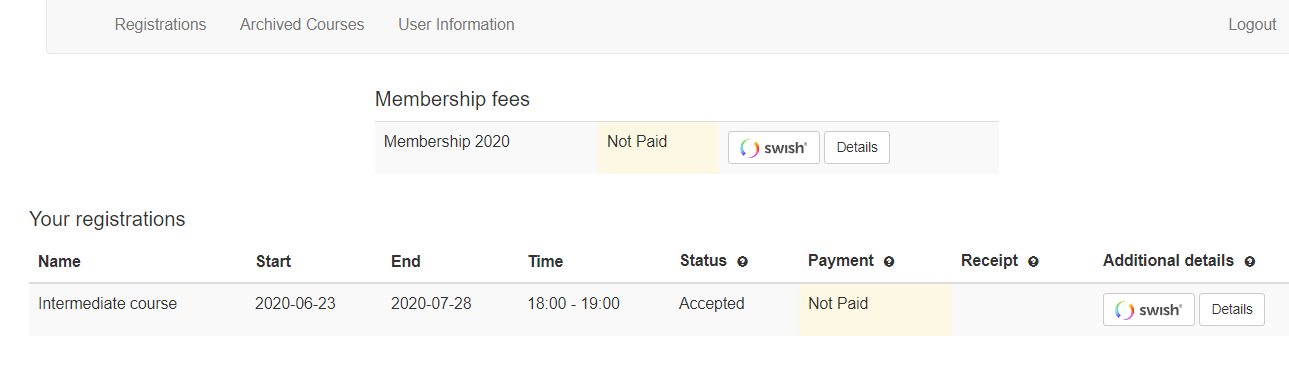
Once accepted to a course, you will receive an email with all the details for the course, and information for payment. There are different ways of paying for a course. The best way is to pay with Swish, directly via the system. This way your payment gets registered immediately and you can see directly that it’s paid. If for some reason we need to refund you full, or parts of the sum you paid, it can be done straight away through swish, without having to do a bank transfer. Swish is currently only supported for people living in Sweden.
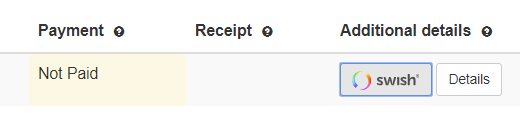
To start a Swish payment, click the Swish button to the right of your registration:
Fill in your mobile phone number, omitting the first 0 and starting with 7. Click Pay and then open your Swish app on your phone and follow the instructions.
You can also pay by bankgiro or international bank transfer. All payment details are listed in the confirmation email you should have received when accepted to the course. Bank payments have to be registered manually in the system, so it might take some time before your registration is marked as paid.
Once the status of your registration is set to Paid, a Receipt button to the right will let you view your receipt.