Setting up a Membership fee
To create a Membership fee, go to Courses/Active Courses:
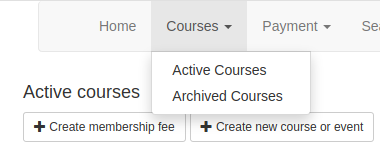
Click on on the Create membership fee button.
Fill in year, price and how many days they have before payment deadline.
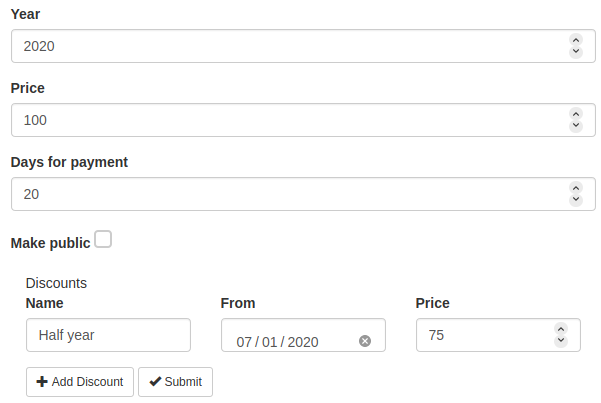
All courses and memberships are created unavailable, meaning that even though the course is created, it won’t be displayed to users before it’s made available. If you wish to make the membership fee available for registration straight away, click the Make public checkbox.
If you want a half-year membership fee, click in the Add Discount button. There you can name the discount, from when it should start, and the price. A membership fee automatically starts 1 st January and ends 31th December (if a discount is added it also ends then). The full membership fee is named Full Year, so a suggestion is to call the discount Half Year.
Notice that membership fees cannot have student discounts.
After setting everything up, click the Submit button to create the Membership fee. If you filled in the Make public checkbox the Membership fee will be published straight away, otherwise you will have to go to the Active courses page and publish it.

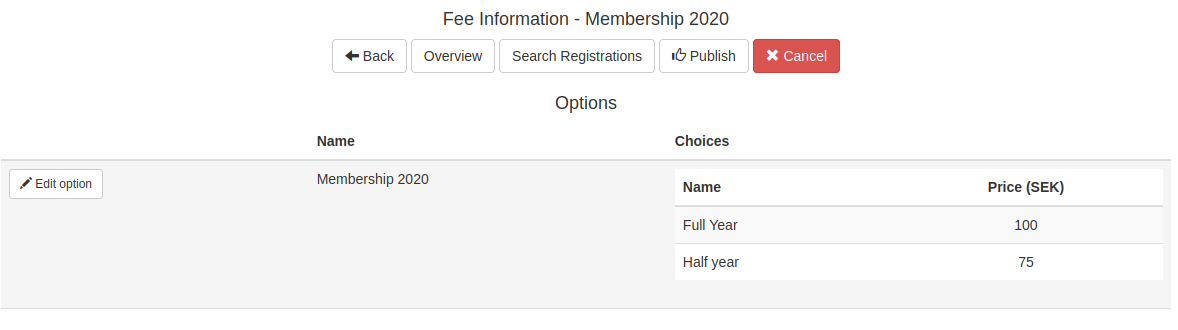
The membership fee will show up in the top row of Active courses. To make changes to the membership fee, click on the Manage button, for example when you want to open it up for registration by clicking the Publis button. An overview of the options for the membership fee are displayed. If the row is red, the membership fee is not yet published and visible for users, it it is white it is published and visible to users.
To make changes to the membership fee, click the Edit options button:
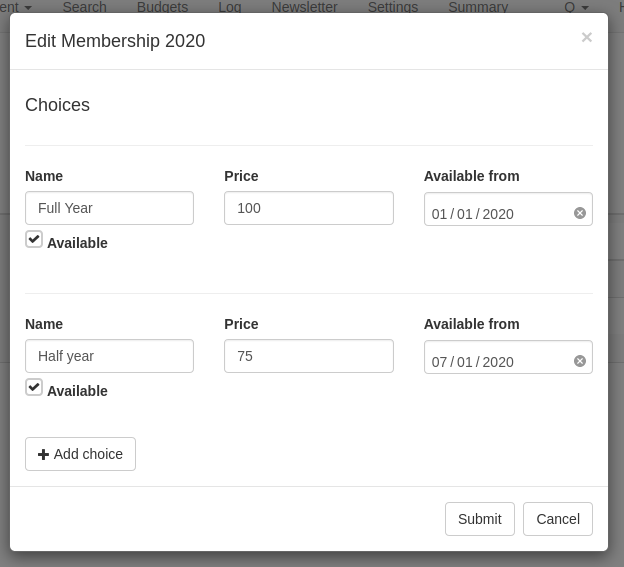
Any changes made to the membership fees will not affect already made registrations, including any changes in prices.