Handling payments
Payments can be made with either Swish, or manually entered:
Swish payments
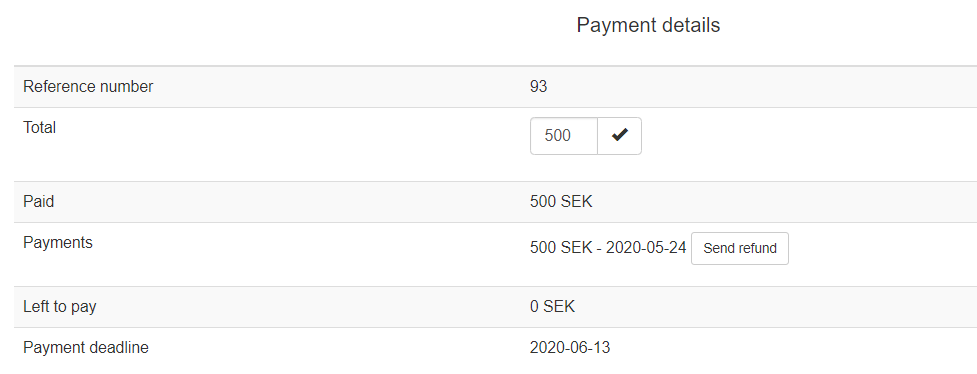
All registrations can be paid via Swish, directly in the system. This way all the administration is handled automatically. If a person has made a swish payment, a button called Send refund appears next to the Payment information found for that registration. To refund swish payments simple click that button, and define the amount to refund. You can only refund up to the amount that was paid in, and if the person has made two separate swish payments you have to refund twice. It is also possible to only refund parts of the sum.
Note! A refund by swish and a manual registered refund as described below are different. A swish refund makes the actual money transfer, while the manual refunds are just a way of updating the system that you have manually transferred back money from your bank account to theirs (or something similar outside this system).
Register manual payments
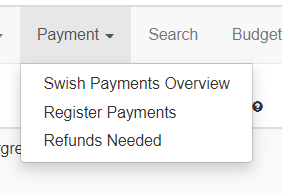
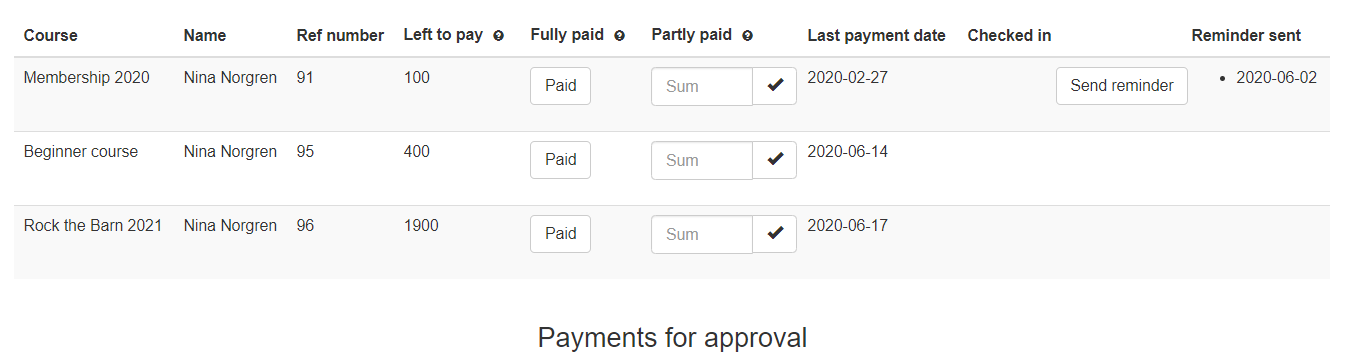
When people have been accepted to a course, their registration will show up here, in the Payment/Register Payments page. If they do a Swish payment, the registration will disappear from this page, and automatically be registered as paid. If they don’t pay straight away, or choose to do a manual transfer, their registrations will remain here until processed. Once you have received their payments you click the Paid button, then it will appear in the lower table, for approval. The sum displayed is the sum that is left to pay, and not for the course. You can also register partial payments, then just write the sum in the Partly paid field, and click the tick. Once you’ve marked all registrations that have been paid, click on the Register payments button. If you click on the cross to right of the registration, it will be moved back up on the top list.
Once a registration is fully paid, it will not be displayed here anymore. So if you register a partial payment, it will still be displayed, but with the remaining cost left to pay. Note that if you register a partial payment, no email with a receipt will be sent to the user.
Once a registration has passed the payment deadline, a Send reminder button will appear to the right. If you click that the system will send an email to remind the person to pay, and also show the date when the reminder was sent. It’s possible to send several reminders, then multiple dates will appear.
Handle refunds

The Payment/Refunds Needed page displays registrations where the person has paid more than the price they are supposed to pay. Reasons for registrations ending up here could be:
The person has paid for the course, and then decides not to go and the registration is removed. The price for the course will then be set to 0, and amount left to pay as the negative course price
The person has requested an update to an already paid registration, that caused the price to be lower than what was already paid. The refund then show the difference that should be refunded
You can click on the Refund button for a full refund, or fill in a sum in the Partial column if you only refund part of the payment. If you click on the fully Refund button the registration will disappear from the list. If you fill in a partial sum that is less than the refund sum than the registration will still be shown, and the refund sum changes.
If you have made all the refunds you wish, or if you don’t want to refund a registration, just click on the Processed button, then the registration will disappear from the page regardless if it’s refunded or not.
If you enter a partial sum that is bigger than the amount to get back, the user will see in his registration that he has the additional sum left to pay, but it will not appear in the Register Payments page, as the status is already set to paid (So, Don’t do this)