Handling registrations
How to handle registrations
Email participants
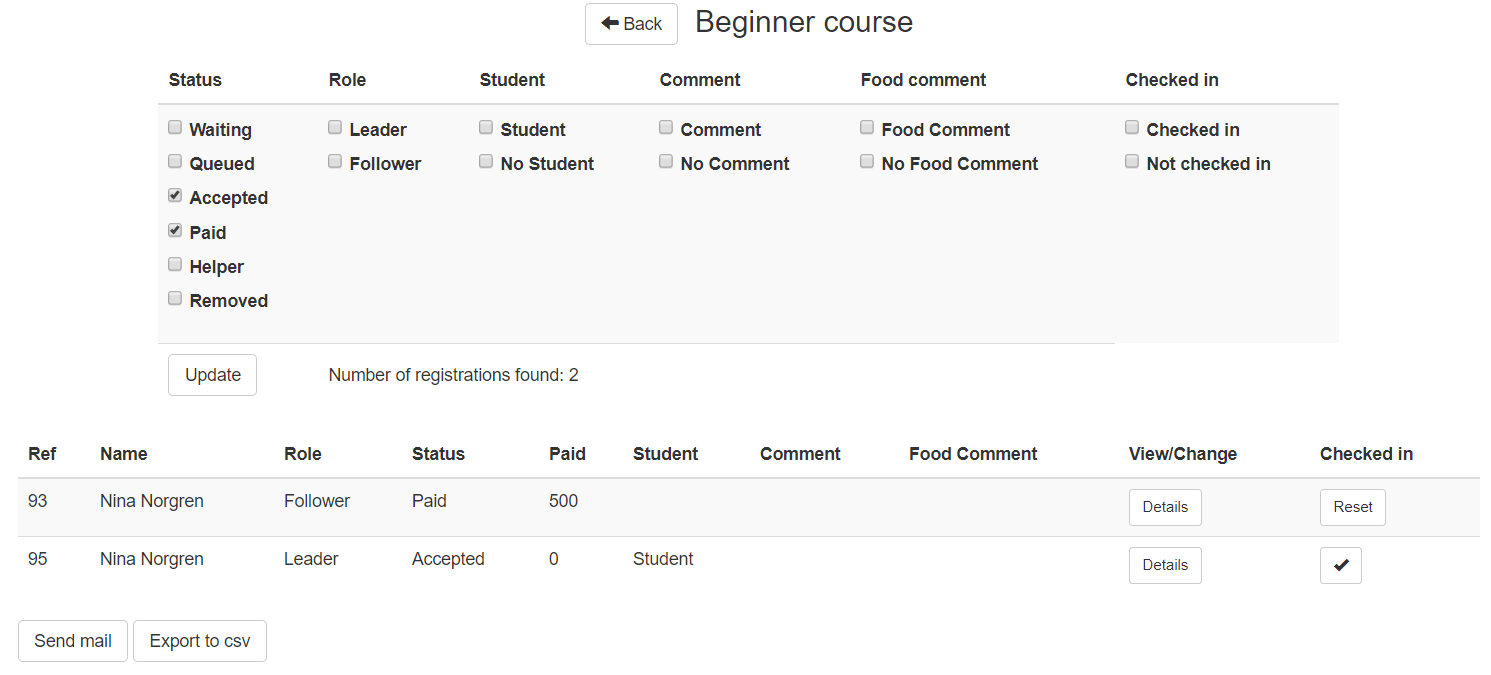
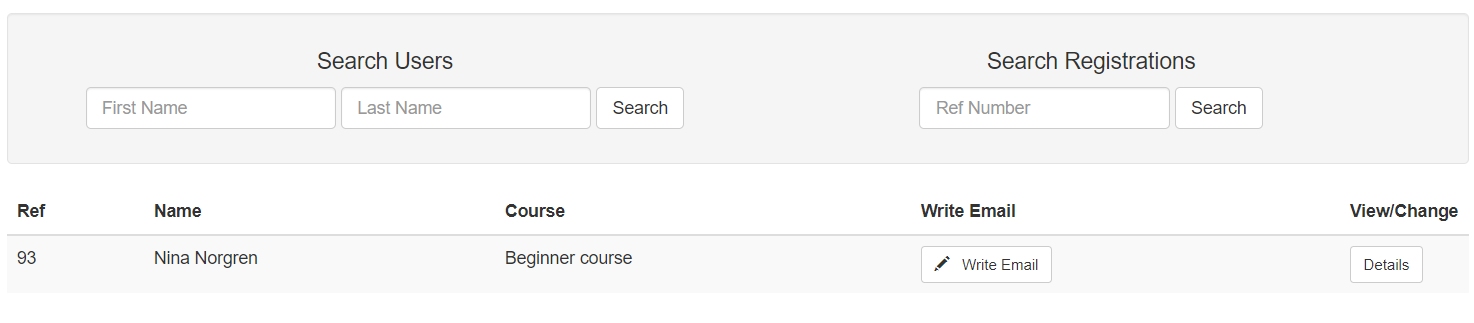
If you want to send an email to everyone in a specific course, use the Course search to filter on the ones you want to send an email to, and then click the Send email button in the bottom. Then you’ll be re-directed to a page where you can write the email. All emails are sent as secret copies. For sending an email to one specific person you can also use the Search page where you can search on either name or registration number for a particular registration:
Registrations overview
When the course has been opened for people to register, you can see how many people that have registered or are in queue with the Overview button:
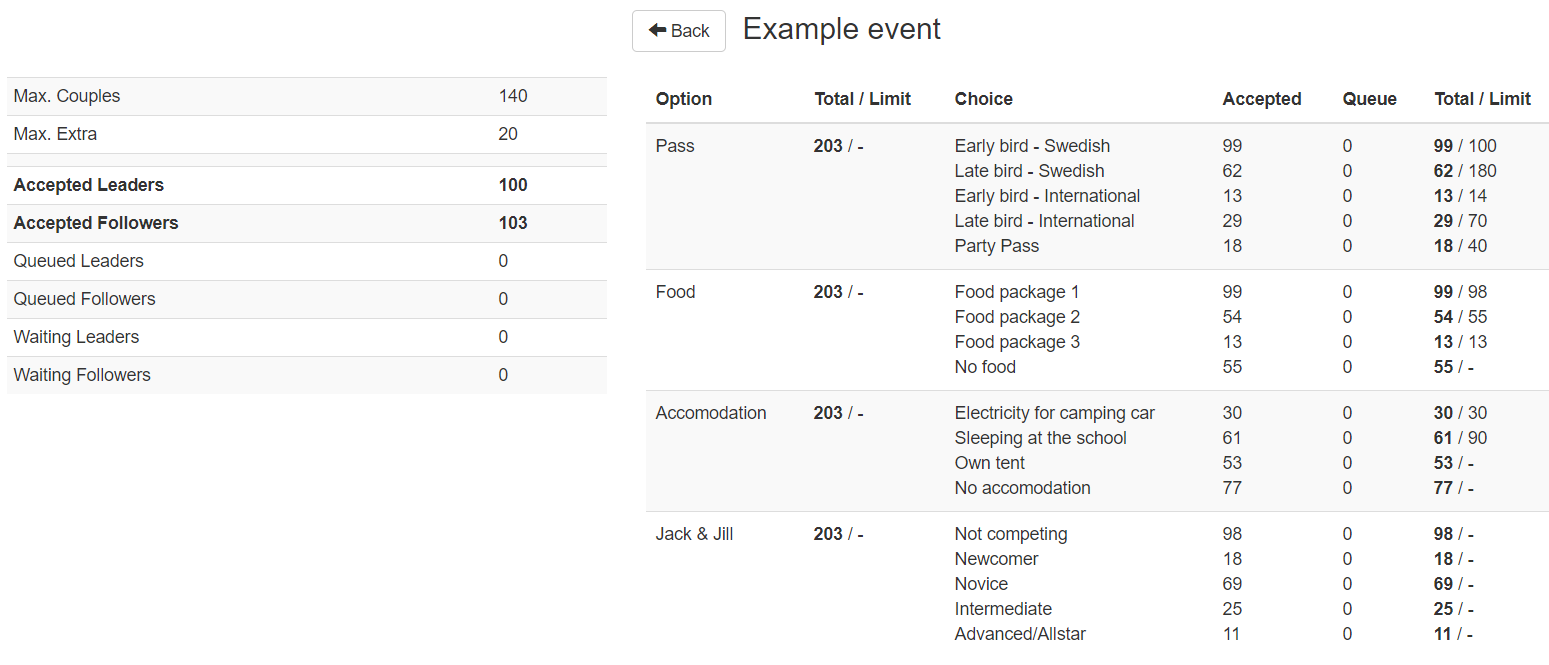
On the left is all details about how many people that has registered, been accepted, on queue etc. To the right is details for all options for a course/event.
Registrations with comments

When people register they can if they want leave a comment in the comment field. All those registrations will end up on the Home page, for easy viewing. This could be used for example if the person registering has a free pass, or some other information they want to relay. By clicking on the Details button you can access that registration and do updates if needed. Once you have seen the comment and wish to not display the registration on the Home page anymore, click on the Processed button, and it will disappear from viewing.
Updating registrations
To see all registrations for a course or event, go to Courses/Active courses/Manage/Search Registration. If you want to make changes to a specific registration, click on the Details button for that registration.
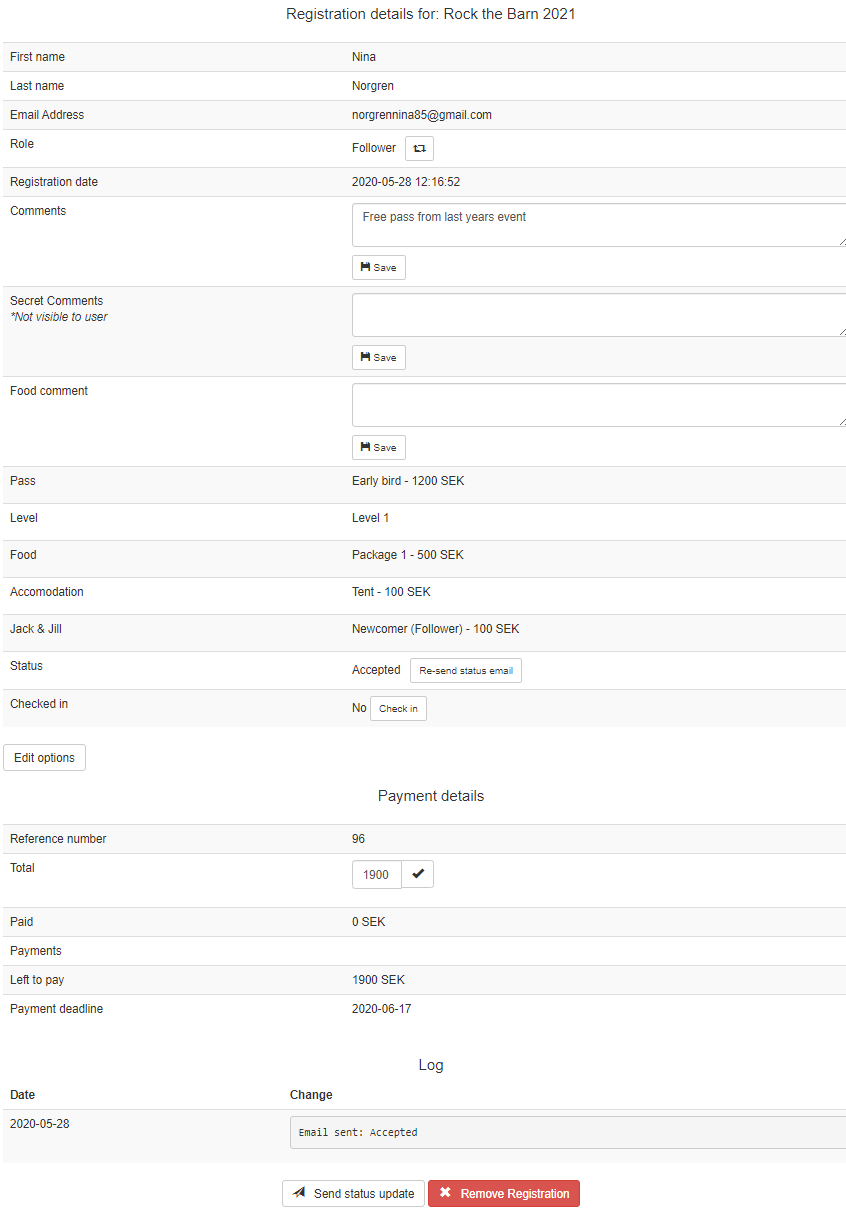
Role: you can change role by clicking on the arrows next to the role.
Comments: all comments can be updated, don’t forget to click on the save button. If you save a comment as a secret comment it won’t be displayed to the user. For example if you internally have done administrative changes to courses and registrations, but which is something not interesting for the user to see, you can put it here.
Options: all options can be edited by clicking the Edit options button:
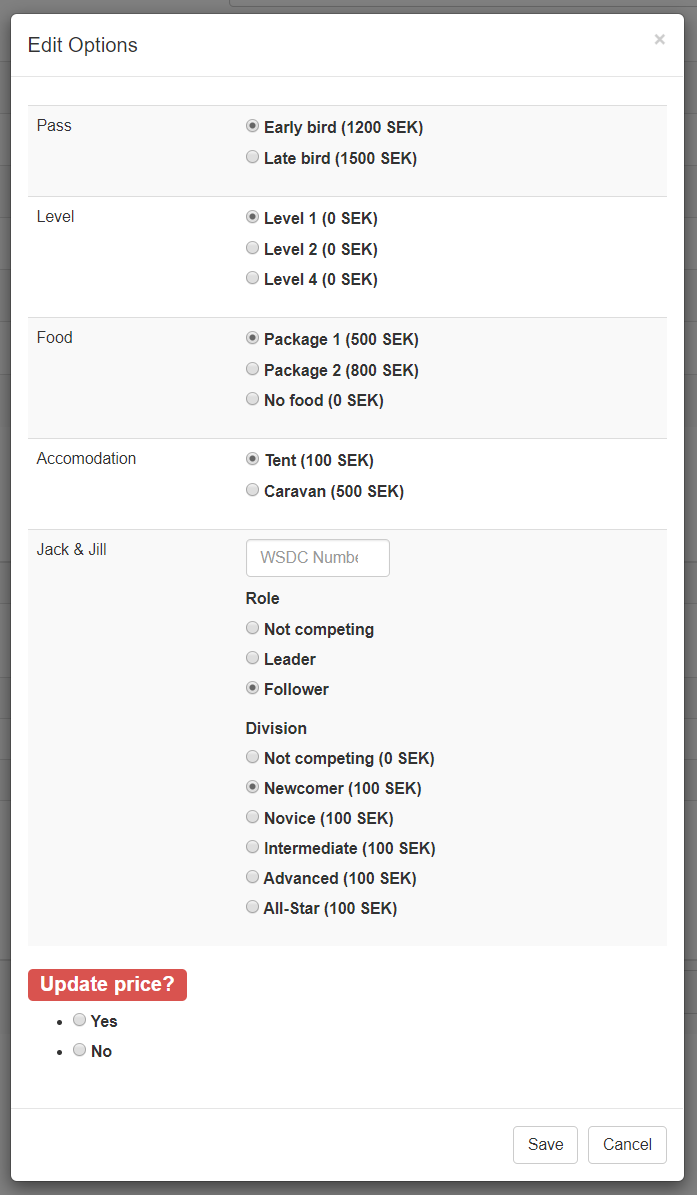
After updating the options, you need to choose if you want to update the price or not. Note! if you have changed the price manually previously, that change will be overwritten if you update the price. The system will just sum up the prices for all the new options and set that as total price.
Send status update: Once you’ve made changes to the registration, you might want to notify the user of the changes you made. By clicking the Send status update button they will receive an email with their updated registration.
Remove registration: If a user let’s you know that he doesn’t want to take the course any more, you can remove the registration by clicking the Remove registrations button. The registration will still be in the system, but the status will be set to Removed. The price will also be set to 0, so if the person already has made a payment, the left to pay will be negative. In this case it will end up on the Handle refunds page. Note! When a registration is removed, the system will check the queue for other registrations to accept.
All changes done to a registration is logged at the bottom of the registration page, but not displayed to the users.